


Learning an incredibly useful yet complex function like Excel’s LAMBDA requires the right mix of theory and examples (and a large coffee!).
LAMBDA Theory
You can use LAMBDA function with named ranges (ExcelJet), but in this post I’ll review an examples using LAMBDA inside another function (ExcelisFun).
Dave Brun’s post and Mike Girvin’s video give you enough initial theory.
Download the Excel file for this post and follow along:
Example1: fill in the blanks
Requirement & Solution
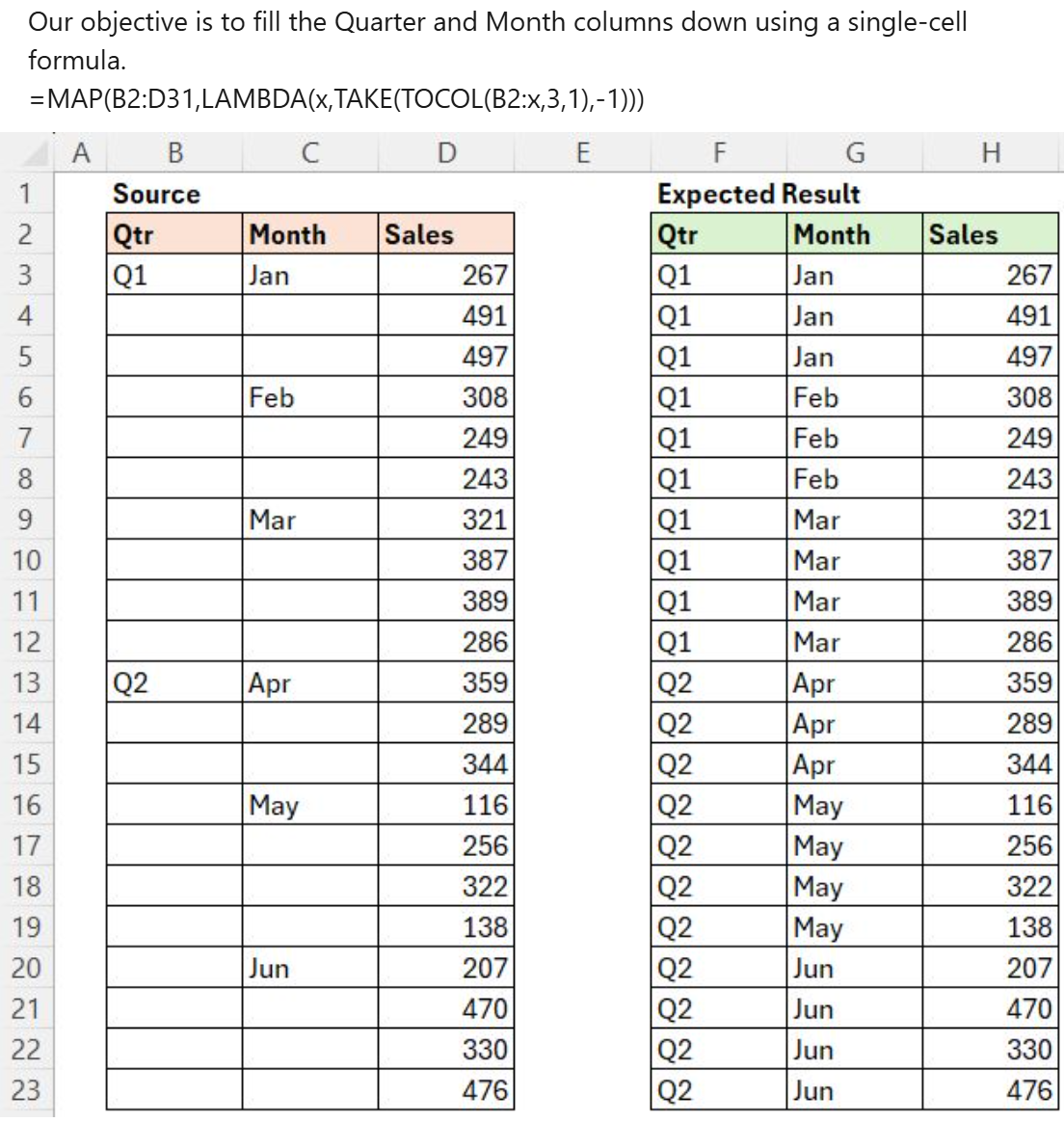
This is from MeganathanElumalai. The requirements are clear and the formula is short. Tricky part is understanding what happens inside TOCOL.
Solution Explanation
=MAP(B2:D23,LAMBDA(x,TAKE(TOCOL(B2:x,3,1),-1)))Theory says MAP function passes each individual value from B2:D23 (left to right, top to bottom) into LAMBDA where a calculation will occur.
Inside LAMBDA, these two parts are easy to understand:
- parameter: LAMBDA gives MAP’s B2:D23 range the name x
- calculation: TAKE function extracts the last value out of function TOCOL
What is TOCOL(B2:x,3,1) doing?
First, a straight forward use of TOCOL. Cell A6 formula results spill down:
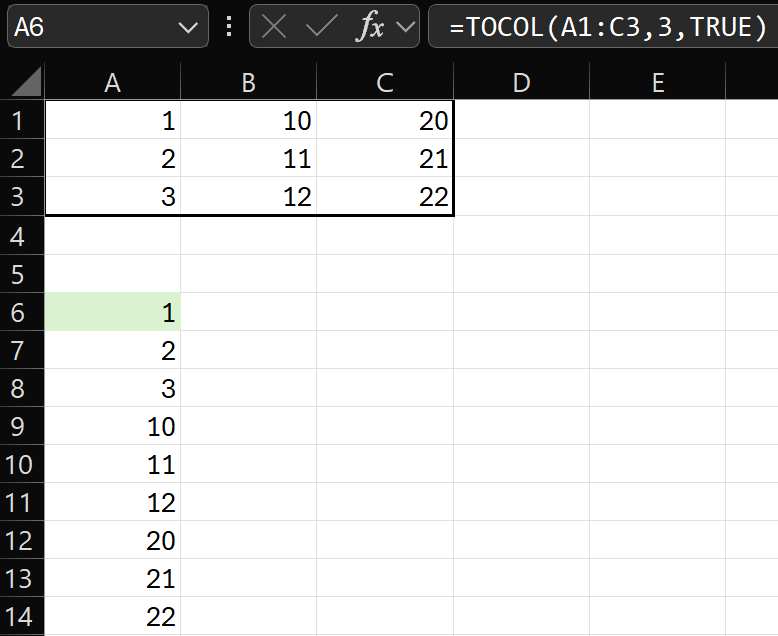
Instead of vertically stacking each full column in the range left to right, C2:x creates expanding ranges starting in the top left of range B2:D23.
So, how can we see all the ranges to fully understand what’s happening?
We can’t. We can select the entire formula and press F9 key but that shows us the output we already see in range F2:H23. I did find a way to peer inside TOCOL!
Remember: TOCOL removes blanks from each range and vertically stacks remaining values by column. TAKE function keeps the last (bottom) value.
Let’s see how cell G8 gets value “Feb” using TAKE(TOCOL(B2:x,3,1),-1)
- TOCOL’s current B2:x range is highlighted green (B2:C8)
- second argument uses 3 to ignore (remove) blanks
- third argument 1 stacks remaining values left to right (column J)
- TAKE function uses -1 to keep the last value “Feb”

To see each range, click the spin button form control (bottom left).
Below, column B’s green range provides cell F15 with “Q2”.

Understanding the ranges TOCOL(B2:x,3,1) creates is the key!
Example2: multiple ranges
A simple example to show that LAMBDA can work with multiple ranges.

Yes, =SUMPRODUCT(A2:A11,B2:B11) or an array gives the same answer but LAMBDA with the initial function (in this case MAP) has tons of potential!
Example3: moving average
There are many ways to write a moving average formula.
Simple but volatile?
=MAP(B2:B51,LAMBDA(data,AVERAGE(OFFSET(data,,,4))))
Efficient but complex?
=MAP(B2:B51,LAMBDA(d,LET(r,ROW(d),last,ROW(B51),AVERAGE(INDEX(B:B,r): INDEX(B:B,MIN(r+3,last))))))Or a little of both?
=MAP(B2:.B100000,LAMBDA(d,AVERAGE(d:INDEX(B:B,ROW(d)+3))))Creating sample data
I’ve created a lot of sample data over the years. Sample data often relies on volatile functions like RANDBETWEEN and RAND. I use this technique to keep the formula for future reference when I want to refresh the sample yet avoid volatility.

Lambda Function Review
Lambda function is incredible! It can do some amazing things that previously were not possible. However, a word of caution. I have also seen some unnecessarily complex solutions that could be solved in an easier way without Lambda function.
About Me

I’m a long term Microsoft Excel user and fan. I love it! Even though I’ve worked with SQL, Power BI, etc., Excel is still my favorite. It’s everywhere and Microsoft keeps adding features and functions. I can’t wait to see what they do next!